wave
- Command
- Description
- Supported file formats
- Standalone command
- Usage
- Loading large file sets
- Automatic unit detection
- Examples
- Keyboard shortcuts
- Mouse controls (pg backend)
- Wave browser (pg backend)
- Sessions (pg backend)
- Pivot
Command
cicsim --no-color wave --help
Usage: cicsim wave [OPTIONS] [FILES]...

  Open waveform viewer.

  Interactive waveform viewer for SPICE simulation results (.raw files).

  Keyboard shortcuts (both backends):
    A              Set cursor A at mouse position
    B              Set cursor B at mouse position
    Escape         Clear cursors
    F              Auto scale (fit all)
    R              Reload all waveforms
    L              Toggle legend
    Shift+Z        Zoom in
    Ctrl+Z         Zoom out
    Ctrl+O         Open raw file
    Ctrl+S         Save session
    Ctrl+P         Export to PDF
    Ctrl+N         New plot tab (pg backend)
    Ctrl+L         Set axis labels
    Ctrl+T         Add annotation
    Ctrl+Q         Quit
    Ctrl+Up        Increase line width
    Ctrl+Down      Decrease line width
    Ctrl+=         Increase font size
    Ctrl+-         Decrease font size

  Mouse (pg backend):
    Scroll             Zoom x-axis
    Shift+Scroll       Zoom y-axis
    Right-drag         Zoom to rubber-band rectangle
    Shift+Right-drag   Pan x-axis
    Ctrl+Right-drag    Pan y-axis
    Left-drag          Pan

  Browser (pg backend):
    Double-click   Add to plot
    Right-click    Context menu (plot, remove, style, analysis)
    Flat checkbox  Toggle hierarchy / flat list

  Backends:
    tk   Default. Uses tkinter + matplotlib. No extra dependencies.
    pg   Uses PySide6 + pyqtgraph. Install: pip install cicsim[pg]
         Features: hierarchical wave browser, automatic dual Y-axes
         (left/right by unit), GPU-accelerated rendering.

  Pivot:
    --pivot spec.yaml     Reshape data using pivot spec before viewing
    --pivot-info          Print unique values per pivot dimension and exit

  Session:
    --session plot.cicwave.yaml         Load saved session
    --export plot.pdf                   Export to file and exit (no GUI)
    --session s.yaml --export out.pdf   Restore session and export

  Globs:
    --glob 'data/*.csv'             Repeatable, supports ** for recursion
    --glob '**/*.raw'               Useful on PowerShell which doesn't
                                     auto-expand patterns

Options:
  --glob TEXT        Glob pattern (repeatable). Supports ** for recursion.
                     Useful on shells like PowerShell that don't auto-expand.
  --x TEXT           X-axis column; else CICWAVE_X / CICSIM_X_AXIS; else saved
                     default (pg); else auto
  --backend [tk|pg]  GUI backend: tk (tkinter+matplotlib) or pg
                     (PySide6+pyqtgraph)
  --sheet TEXT       Sheet name for Excel files (default: first sheet)
  --pivot TEXT       Pivot spec file (YAML/JSON)
  --pivot-info       Print pivot dimensions and exit
  --session TEXT     Load session file (.cicwave.yaml)
  --export TEXT      Export plot to file (PDF/PNG/SVG) and exit
  --help             Show this message and exit.
Description
wave is an interactive waveform viewer for SPICE simulation results and
tabular data files. It supports ngspice raw files and any file format that
pandas can read.
Two GUI backends are available:
| Backend | Flag | Dependencies | Install |
|---|---|---|---|
| tkinter + matplotlib | --backend tk (default) |
tkinter |
brew install python3-tk / apt install python3-tk |
| PySide6 + pyqtgraph | --backend pg |
PySide6, pyqtgraph |
pip install cicsim[pg] |
The pg backend offers a hierarchical wave browser (collapsible by instance path), automatic dual Y-axes (left/right by unit), closeable tabs, analysis functions, and GPU-accelerated rendering.
Supported file formats
| Format | Extensions | Notes |
|---|---|---|
| ngspice raw | .raw |
Binary raw files (transient, AC, DC) |
| CSV | .csv |
Comma-separated values |
| TSV | .tsv, .txt |
Tab-separated values |
| Excel | .xlsx, .xls, .ods |
Use --sheet to pick sheet |
| Pickle | .pkl, .pickle |
Pickled pandas DataFrames |
| JSON | .json |
pandas-compatible JSON |
| Parquet | .parquet |
Requires pyarrow or fastparquet |
| Feather | .feather |
Requires pyarrow |
| HDF5 | .h5, .hdf5 |
Requires tables |
| HTML | .html |
Reads first table on page |
| XML | .xml |
Requires lxml |
| Fixed-width | .fwf |
Fixed-width formatted text |
| Stata | .stata, .dta |
Stata data files |
| SAS | .sas7bdat |
SAS data files |
| SPSS | .sav |
Requires pyreadstat |
String-based columns are supported as categorical axes (labels rotated 90 degrees).
Standalone command
A standalone cicwave command is available that defaults to the pyqtgraph
backend. It is equivalent to cicsim wave --backend pg.
cicwave output_tran/tran_SchTtVt.raw
Usage
Open a single raw file:
cicsim wave output_tran/tran_SchTtVt.raw
Open multiple raw files:
cicsim wave output_tran/tran_SchTtVt.raw output_tran/tran_SchThVh.raw
Specify which signal to use as x-axis:
cicsim wave output_tran/tran_SchTtVt.raw --x time
Use the pyqtgraph backend:
cicsim wave --backend pg output_tran/tran_SchTtVt.raw
Open a CSV file:
cicwave data.csv
Open an Excel file with a specific sheet:
cicwave data.xlsx --sheet "Sheet2"
Open many files at once with a glob pattern (useful on PowerShell, which
doesn’t auto-expand globs). The pattern is repeatable and supports **
for recursion:
cicwave --glob "results/*.csv"
cicwave --glob "out/**/*.raw" --glob "extras/*.csv"
Loading large file sets
Files are opened lazily: only the column header is read on open, and the
full data is parsed (with pyarrow when available) the first time a wave
is actually plotted. This makes it practical to drop hundreds of large
CSV/TSV/Excel files into the viewer at once. Selecting “Plot all visible
waves” or “Plot for all files” then triggers the full parse only for the
files you actually plot.
When PyOpenGL is installed (it is by default), the pyqtgraph backend
uses GPU-accelerated rendering, which keeps zoom/pan responsive even
with hundreds of curves on screen. Display-time downsampling (lossless,
viewport-aware) is enabled automatically.
Automatic unit detection
When a column name carries a unit suffix, cicwave picks it up so axis
labels and engineering-notation tick formatting work without any manual
configuration. Recognised forms (separator may be _, ` , /, [],
(), or {}`):
| Column name | Detected unit | Data scaling | Axis label |
|---|---|---|---|
Frequency_MHz |
Hz |
× 1e6 | “Frequency” |
Amplitude [dBm] |
dBm |
× 1.0 | “Amplitude” |
delay_ps |
s |
× 1e-12 | “delay” |
I_uA |
A |
× 1e-6 | “I” |
phase / deg |
deg |
× 1.0 | “phase” |
SI-prefixed base units (Hz, V, A, s, W, F, H, Ω/ohm) with prefixes
y/z/a/f/p/n/u/µ/m/k/K/M/G/T/P/E are rescaled to the base unit so
ticks display nice prefixes (e.g. “5.726 GHz”) regardless of the unit
the data was stored in. Log-domain units (dB, dBm, dBV, dBuV, dBc,
dBFS, dBi, dBA) are kept as the literal string and never rescaled.
SPICE-style names like v(out) and i(M1.d) are left untouched.
Examples
There is example test data in tests/wave. Navigate to that directory.
Single wave
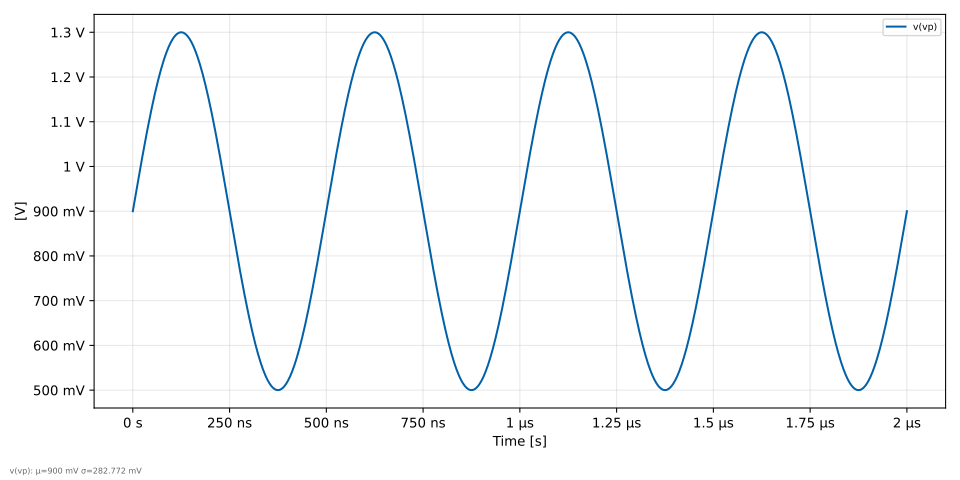
Plot a single voltage signal:
cicwave --session session_single.cicwave.yaml --export wave_single.svg
Multiple waves
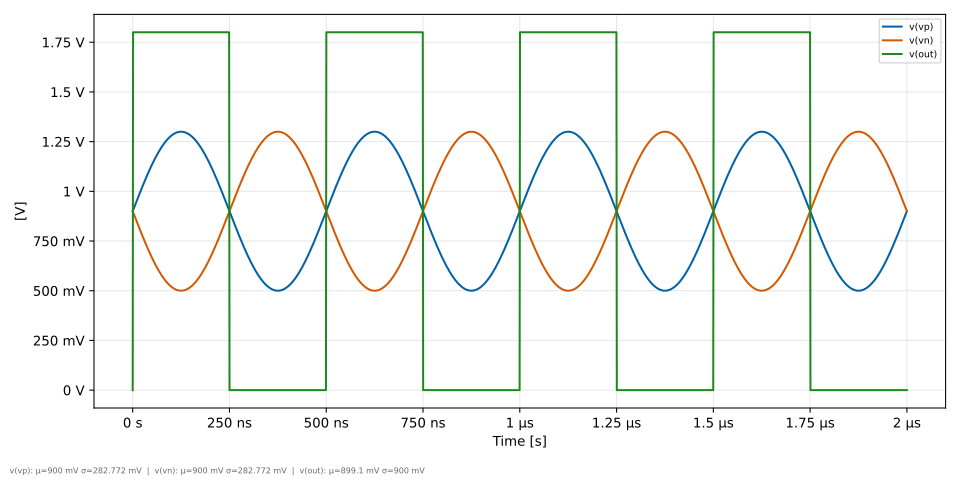
Plot multiple signals on the same axes:
cicwave --session session_multi.cicwave.yaml --export wave_multi.svg
Dual Y-axes
When voltage and current signals are plotted together, the pg backend automatically assigns them to separate Y-axes based on their unit:
cicwave --session session_dual.cicwave.yaml --export wave_dual.svg
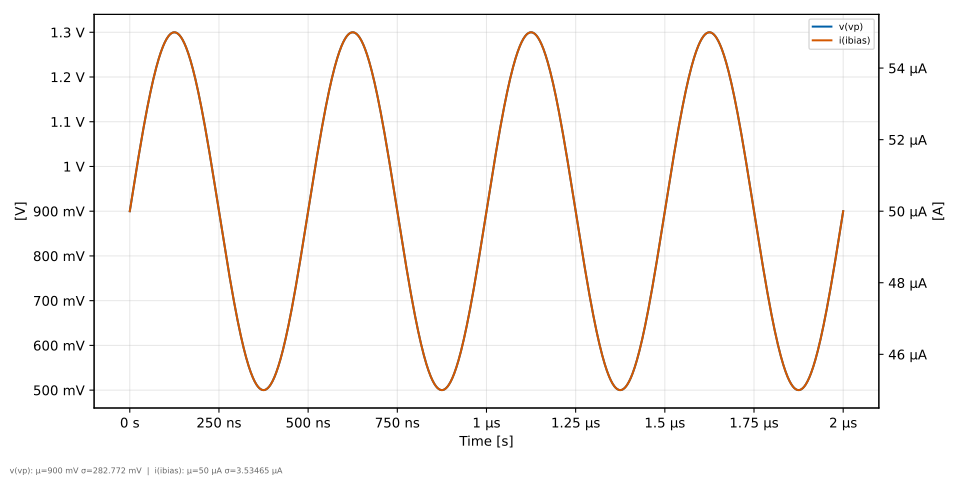
cat session_dual.cicwave.yaml
files:
  - path: test.csv
plots:
  - name: Dual Y-axes
    waves:
      - file: 0
        name: "v(vp)"
        style: Lines
      - file: 0
        name: "i(ibias)"
        style: Lines
Keyboard shortcuts
File
| Key | Action |
|---|---|
| Ctrl+O | Open file |
| Ctrl+S | Save session (pg) |
| Ctrl+P | Export to PDF/PNG/SVG |
| Ctrl+Q | Quit |
Edit
| Key | Action |
|---|---|
| Ctrl+N | New plot tab (pg) |
| Ctrl+W | Close current tab (pg) |
| Ctrl+A | Add axis (tk) |
| Ctrl+L | Set axis labels (pg) |
| Ctrl+T | Add annotation (pg) |
| R | Reload all waveforms |
| F | Auto scale (fit all) |
| Shift+Z | Zoom in |
| Ctrl+Z | Zoom out |
| Delete | Remove selected wave (tk) |
Cursors
| Key | Action |
|---|---|
| A | Set cursor A at mouse position |
| B | Set cursor B at mouse position |
| Escape | Clear cursors |
When two cursors are placed the readout panel shows ΔX, per-signal ΔY, slope, and derivative values at both cursor positions.
View
| Key | Action |
|---|---|
| L | Toggle legend |
| Ctrl+Up | Increase line width |
| Ctrl+Down | Decrease line width |
| Ctrl+= | Increase font size |
| Ctrl+- | Decrease font size |
Mouse controls (pg backend)
| Action | Effect |
|---|---|
| Scroll | Zoom x-axis |
| Shift+Scroll | Zoom y-axis |
| Right-drag | Rubber-band zoom rectangle |
| Shift+Right-drag | Pan x-axis |
| Ctrl+Right-drag | Pan y-axis |
| Left-drag | Pan |
| Click cursor line | Drag to reposition |
Wave browser (pg backend)
- Double-click a wave to add it to the plot
- Right-click a wave to open the context menu:
- Plot / Remove from plot
- Change plot style (Lines, Markers, Lines+Markers, Steps)
- FFT / PSD (spectral density in dB)
- Histogram (distribution with Gaussian fit, mean/sigma)
- Differentiate (numerical dy/dx)
- X vs Y (parametric plot with regex signal picker)
- Signal names with dotted hierarchy (e.g.
v(xdut.x1.out)) are shown as a collapsible tree organized by instance path - Use the Flat checkbox to switch to a flat list view
- Use the regex filter to search for signals
- Plotted waves are colored in the browser to match their plot line
Sessions (pg backend)
A session file captures the full viewer state so you can save a view and restore it later, or generate plots from the command line without opening the GUI.
Save via menu: File → Save Session (Ctrl+S)
Load from the command line:
cicwave --session mysession.cicwave.yaml
Export a session to PDF without opening the GUI:
cicwave --session mysession.cicwave.yaml --export plot.pdf
Combine session restore with export (useful for scripted plot generation):
cicwave --session mysession.cicwave.yaml --export plot.svg
Session file format
A session file is YAML with two top-level keys: files and plots.
File paths are relative to the session file location.
files:
  - path: ../data/tran.raw           # path to data file (required)
  - path: ../data/measurements.csv
    pivot: ../specs/pivot_spec.yaml   # optional pivot spec for this file

plots:
  - name: "Transient"                # tab name
    title: "Amplifier Output"        # plot title (optional)
    xlabel: "Time"                    # custom x-axis label (optional)
    ylabel: "Voltage"                # custom y-axis label (optional)
    waves:
      - file: 0                      # index into the files list
        name: "v(out)"               # column / signal name
        style: Lines                  # Lines, Markers, Lines+Markers, Steps
      - file: 0
        name: "v(in)"
        style: Lines
    annotations:                      # optional list of text annotations
      - text: "settling"
        x: 1.5e-6
        y: 0.9

  - name: "DC sweep"                 # second tab
    waves:
      - file: 1
        name: "Gain_T27"
        style: Lines
Session file reference
files — list of data files to load:
| Key | Required | Description |
|---|---|---|
path |
yes | Path to the data file (relative to session file or absolute) |
pivot |
no | Path to a pivot spec YAML/JSON file to reshape this file before viewing |
plots — list of plot tabs:
| Key | Required | Description |
|---|---|---|
name |
no | Tab name shown in the tab bar |
title |
no | Plot title displayed above the graph |
xlabel |
no | Custom x-axis label |
ylabel |
no | Custom y-axis label |
waves |
yes | List of waves to plot (see below) |
annotations |
no | List of text annotations (see below) |
waves — list of signals to plot in a tab:
| Key | Required | Description |
|---|---|---|
file |
yes | Zero-based index into the files list |
name |
yes | Column name (signal name) in the data file |
style |
no | Plot style: Lines (default), Markers, Lines+Markers, or Steps |
annotations — list of text labels placed on the plot:
| Key | Required | Description |
|---|---|---|
text |
yes | Annotation text |
x |
yes | X position in data coordinates |
y |
yes | Y position in data coordinates |
Pivot
Pivot reshapes a flat/long-format table into wide format suitable for waveform plotting. This is useful when simulation results are stored as one-row-per-measurement (e.g. parameter sweeps, Monte Carlo results).
Usage
cicsim wave results.csv --pivot spec.yaml
Inspect the available pivot dimensions first:
cicsim wave results.csv --pivot spec.yaml --pivot-info
Pivot spec format
A pivot spec is a YAML (or JSON) file with the following keys:
index: Parameter         # column whose unique values become separate waves
columns: Frequency       # (optional) column used as x-axis
values: Measurement      # column containing the y-axis values
conditions:              # (optional) further split waves by these columns
  - Temp
  - Config
aliases:                 # (optional) short names for condition values
  Config:
    c0: "LV"
    c1: "HV"
Pivot spec reference
| Key | Required | Description |
|---|---|---|
index |
yes | Column to split on — each unique value becomes a wave (e.g. Parameter) |
columns |
no | Column to use as the x-axis. Rows with NaN in this column are dropped. If omitted the result is a bar-style categorical plot |
values |
yes | Column containing the measurement values (y-axis) |
conditions |
no | List of additional columns to split by. Each unique combination of (index × conditions) becomes its own wave. Wave names are formed as {index}_{C}{condition_value} |
aliases |
no | Dictionary of short names for condition values. Keyed by condition column name, then c0, c1, … for each unique value in sorted order |
Example
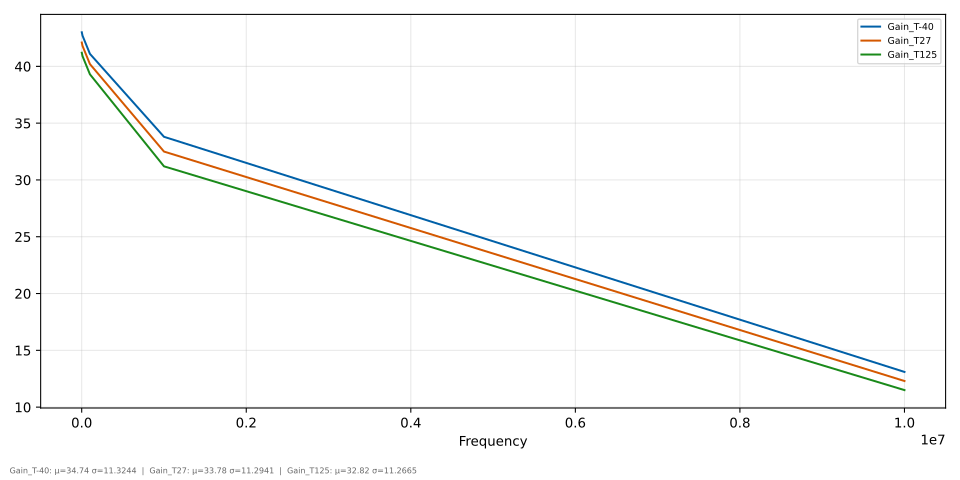
Given a CSV with amplifier gain and phase measured across frequency at three temperatures:
cat pivot_data.csv
Parameter,Frequency,Measurement,Temp
Gain,1000,42.1,27
Gain,10000,41.8,27
Gain,100000,40.2,27
Gain,1000000,32.5,27
Gain,10000000,12.3,27
Gain,1000,43.0,-40
Gain,10000,42.7,-40
Gain,100000,41.1,-40
Gain,1000000,33.8,-40
Gain,10000000,13.1,-40
Gain,1000,41.2,125
Gain,10000,40.9,125
Gain,100000,39.3,125
Gain,1000000,31.2,125
Gain,10000000,11.5,125
Phase,1000,-1.2,27
Phase,10000,-5.8,27
Phase,100000,-45.3,27
Phase,1000000,-120.7,27
Phase,10000000,-170.2,27
Phase,1000,-1.0,-40
Phase,10000,-5.2,-40
Phase,100000,-42.1,-40
Phase,1000000,-115.3,-40
Phase,10000000,-168.5,-40
Phase,1000,-1.4,125
Phase,10000,-6.5,125
Phase,100000,-48.7,125
Phase,1000000,-125.9,125
Phase,10000000,-172.1,125
And a pivot spec:
cat pivot_spec.yaml
index: Parameter
columns: Frequency
values: Measurement
conditions:
  - Temp
The --pivot-info flag shows the dimensions:
cicwave pivot_data.csv --pivot pivot_spec.yaml --pivot-info
Error: cicwave package not found
For PyQtGraph backend, install with: pip install cicwave
Alternatively, use: cicsim wave --backend tk
Plotting the pivoted data with a session:
cicwave --session session_pivot.cicwave.yaml --export wave_pivot.svg